
Updated after teaching this live. I recently walked a full room through this build, step by step. The AI part was easy — but many people got stuck on Obsidian itself: where the vault folder lives, what a “.md” file is, and how the folders actually work. So I’ve added a plain-English “Obsidian Basics” section below to clear that up before you start. If you were at the session, this is your written companion.
Picture this. You spend an hour explaining your business, your goals and your way of thinking to an AI assistant. It gives you brilliant answers. Then you close the tab — and the next morning, it greets you like a complete stranger. Everything you taught it is gone.
This is the quiet frustration of modern AI: it has no memory of you. Andrej Karpathy, an early member of the OpenAI team and one of the most respected minds in the field, noticed the same flaw and popularised an elegant fix. Instead of asking the AI to remember, you give it a memory — a living wiki it maintains and improves on your behalf.
The result is a personal “second brain”: a private Retrieval-Augmented Generation (RAG) system that needs no complex code and no databases. On Day 1 it is just a pile of documents. By Day 100, it is an irreplaceable asset — an assistant that thinks the way you think, understands your context, and has memorised every article, meeting and book you have ever fed it. This guide shows you how to build one in under 30 minutes.
Watch the Walkthrough
Prefer to see it in action first? This short video walks through the full second-brain setup from start to finish — follow along here, then use the steps below as your reference.
Video not showing? Watch it directly on YouTube →
Why Obsidian + Claude Is the Winning Pair
You stay in control. Obsidian stores everything locally on your computer as plain markdown (.md) files. If Claude vanished tomorrow, you would still own 100% of your notes — and you could simply swap in another AI model. Nothing is locked away in someone else’s cloud.
The AI becomes your librarian. You no longer fuss over folders and tags. You dump raw information into the system, and Claude reads it, organises it, links it and indexes it for you. You capture; the AI curates.
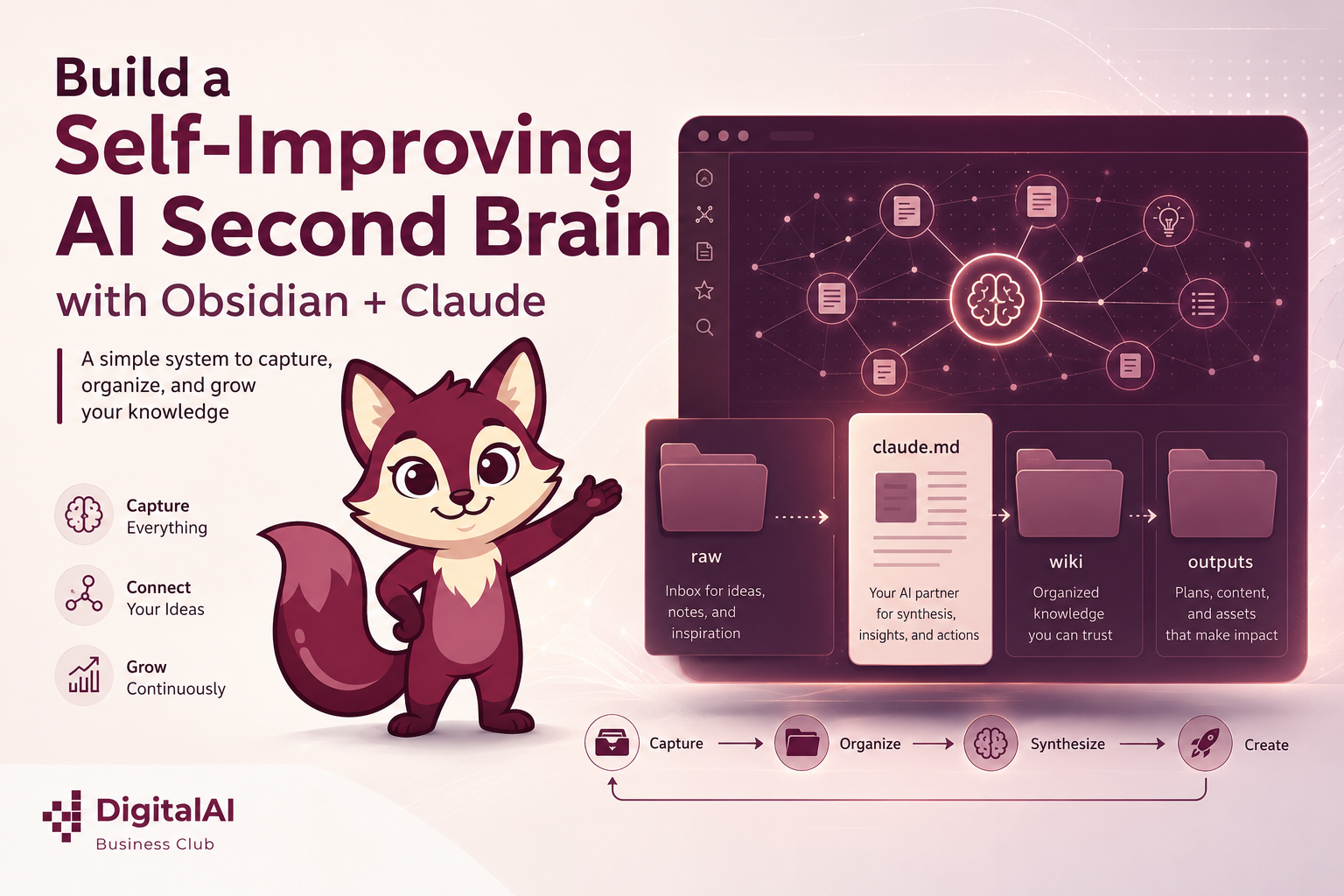
The Architecture: Three Folders and One File
Experts who build these systems keep landing on the same simple structure. It is deliberately minimal — the simplicity is what lets the AI do the heavy lifting.
1. The “raw” Folder
Your junk drawer. Dump articles, transcripts and rough notes here without any formatting or organisation. Capture first, worry never.
2. The “wiki” Folder
Where Claude independently builds your structured, interconnected mind-map — concept by concept, link by link.
3. The “outputs” Folder
Where Claude saves the final reports and answers it generates for you, so its best insights become part of its own memory.
First, Obsidian in Plain English (The Part That Trips Everyone Up)
When I taught this live, this — not the AI — was where most people got stuck: “Where is my vault? What is a .md file? Are these folders even real?” If you have never used Obsidian before, that confusion is completely normal. Here are the three plain-English truths that make everything click. Get these, and the four setup steps below become easy.
A “Vault” is just a folder
An Obsidian vault is not a special file, an app account, or a cloud service. It is an ordinary folder on your computer — one you choose the location of. Obsidian is simply a nicer window for looking into that folder. Uninstall Obsidian tomorrow and your notes still sit there as files.
A “.md” file is just a text file
Markdown (.md) is plain text with a few simple marks: # makes a heading, **stars** make bold, and [[double brackets]] make a link between notes. It opens in any text editor on earth. No Microsoft Word, no database — and that plainness is exactly why your brain stays private, portable and future-proof.
What you see = what’s on your disk
The raw, wiki and outputs folders you create inside Obsidian are the same real folders on your computer. Open your file manager at the vault and you will see them there, identical. Obsidian and your Finder (Mac) or File Explorer (Windows) are just two windows onto one place.
🔑 How to find your Vault’s folder path
This is the exact spot people froze in the live session. You need this “path” (the address of your folder) in Step 3, when you point Claude at your vault. The quickest way to find it on any computer:
In Obsidian, right-click any note in the left sidebar → choose “Reveal in Finder” (Mac) or “Show in system explorer” (Windows). The window that pops open is your vault folder — and the bar at the top shows its path.
On a Mac it looks like: /Users/YourName/Documents/MyBrain
On Windows it looks like: C:\Users\YourName\Documents\MyBrain
The Setup: From Empty Folder to Living Brain
Here is the exact workflow. None of it requires programming — only the willingness to follow four short steps.
Step 1 — Set Up Your Vault & Rules
Download and install Obsidian (it’s free), then create a new “Vault” — which, as we just saw, is really just a folder on your computer (pick a location you can find again, like your Documents folder). Inside it, create your raw, wiki and outputs folders. Finally, drop a claude.md file in the root and write the AI’s instructions in plain English, for example: “You are my librarian. Read the ‘raw’ folder and build an interconnected wiki in the ‘wiki’ folder.” (Not sure where your vault lives on disk? See “How to find your Vault’s folder path” just above.)
Step 2 — Collect (The Data Dump)
The first phase is pure gathering. Install the free Obsidian Web Clipper extension in Chrome. Whenever you find a great article, a podcast transcript or a YouTube transcript, clip it straight into your raw folder as a text file. You do not need to organise or tidy any of it — just capture it.
Step 3 — Compile (Building the Brain)
Now point Claude at your Obsidian folder, using the Claude desktop app’s Cowork feature or Claude Code. This is where the vault path you found earlier comes in — you are simply telling Claude which folder on your computer to read. Then give it a clear instruction: “Read all the sources in my raw folder. Build a structured wiki in the wiki folder organised by concept. Create an index file, summarise the evidence, and hyperlink related concepts.”
Here is the magic. Claude reads everything, creates new concept files, and uses Obsidian’s double-bracket linking [[like this]] to connect related ideas. Open the Graph View in Obsidian and you will literally see your knowledge come alive as a visual mind-map of interconnected thoughts.
Daily Use: How the Brain Gets Smarter
A second brain is only valuable if you use it. Two simple habits turn it from a static archive into a compounding asset.
Step 4 — Query (Ask Better Questions)
Instead of asking a generic chatbot a cold question, ask Claude to answer using your wiki. A favourite prompt: “Based on everything in my wiki, what are the three biggest gaps in my understanding of this topic?” When Claude produces a great answer, save it into the outputs folder. This creates a compounding effect — the AI files its best insights back into its own memory and grows sharper every day.
Step 5 — The Monthly “Health Check”
Left unattended, any knowledge base gets messy. So once a month, ask Claude to audit the whole thing: review the entire knowledge base, flag contradictions between sources, clean up formatting, find missing data, and suggest three new topics worth researching to fill the gaps. This is the single best practice that keeps your second brain trustworthy instead of cluttered.
The Elephant in the Room: Privacy
Because an AI agent now has access to your local files, privacy hygiene is not optional — it is the foundation. Three principles keep you safe:
Isolation
Only feed the system information you are comfortable with the AI seeing. Keep it to research and public business data — never connect personal banking or private emails.
Use the API
Working through an LLM provider’s API usually means your data isn’t used for training and is deleted quickly — Anthropic, for example, retains API data for only 30 days or less without training on it.
Go Local When Needed
Because your data lives locally in Obsidian, you can later swap Claude for a fully offline open-source model (via tools like LM Studio) for your most sensitive material.
Key Takeaways
- The problem: Standard AI forgets you every session — there is no continuity, no context, no memory.
- The fix: Give the AI a memory instead. An Obsidian vault becomes a private RAG system with no code required.
- The foundation: A vault is just a folder, a .md file is just text, and the folders you see in Obsidian are the real folders on your disk. Get this and the rest is easy.
- The structure: Three folders (raw, wiki, outputs) plus one master claude.md file is all you need.
- The loop: Capture raw data, let Claude compile a linked wiki, query it, and save the best answers back in.
- The discipline: A monthly health check keeps the brain clean, consistent and growing in the right direction.
- The payoff: By Day 100, you own an AI assistant that thinks like you and remembers everything you’ve taught it.
Free Resource: The Build Kit
Want to skip the blank-page start? We’ve put together a free shared folder with the companion materials for this guide — the claude.md starter template, the exact setup prompts, and a step-by-step checklist so you can build your second brain alongside the article.
Frequently Asked Questions
Where is my Obsidian vault actually saved on my computer?
Wherever you chose when you created it. To find it, right-click any note in Obsidian’s sidebar and pick “Reveal in Finder” (Mac) or “Show in system explorer” (Windows) — that opens the exact folder, and the address bar shows the path. It usually looks like /Users/YourName/Documents/MyBrain on Mac or C:\Users\YourName\Documents\MyBrain on Windows.
What exactly is a markdown (.md) file?
Just a plain text file with a few simple formatting marks — # for a heading, **stars** for bold, and [[double brackets]] to link one note to another. It opens in any text editor, contains no hidden code or database, and is the reason your notes stay private, portable and readable for decades.
Are the folders inside Obsidian the same as the folders on my computer?
Yes — exactly the same. When you make the raw, wiki and outputs folders in Obsidian, you are creating real folders on your hard drive. Open your Finder or File Explorer at the vault path and you will see them sitting there. Obsidian is just a friendlier window onto those files, which is also why you can point Claude straight at the same folder.
Do I need to know how to code to build this?
No. The entire system is built from plain markdown files and plain-English instructions to Claude. There are no databases, no scripts and no programming involved — just folders, a text file, and clear prompts.
What exactly is a “second brain”?
It is a personal knowledge base that an AI maintains for you. You feed it raw information; the AI organises it into an interconnected wiki and answers your questions based on it — so your accumulated knowledge becomes searchable, linked and reusable.
Why use Obsidian instead of a cloud note app?
Obsidian stores everything locally as markdown files you fully own. That keeps your data private, future-proof and portable — if you ever want to switch AI models or apps, your notes go with you untouched.
Is my data safe if an AI can read my files?
It is as safe as the boundaries you set. Only feed the system data you’re comfortable sharing, prefer API access (where data isn’t used for training and is deleted quickly), and use a local offline model for highly sensitive material.
How long before this becomes genuinely useful?
You’ll get value from the very first query, but the compounding effect is the real prize. The more you capture and the more answers you save back, the smarter and more personalised the system becomes over weeks and months.
Want Help Building This for Your Team or Business?
We help Malaysian SMEs adopt practical AI workflows like this — from personal second brains to full ERP and automation systems. Let’s talk about what an AI-powered knowledge system could do for your organisation.
WhatsApp Kalmen Chia at 016-7737850
WhatsApp / Call: 016-7737850
Email: Kalmenchia@e-globalscm.com.my
www.e-globalscm.com.my | DigitalAIBusinessClub.com
Join Our Free AI Business Community
Connect with business owners, leaders, coaches, consultants and professionals who want to use AI practically for business growth, productivity and future-ready strategy.
Join Free AI Business Community