
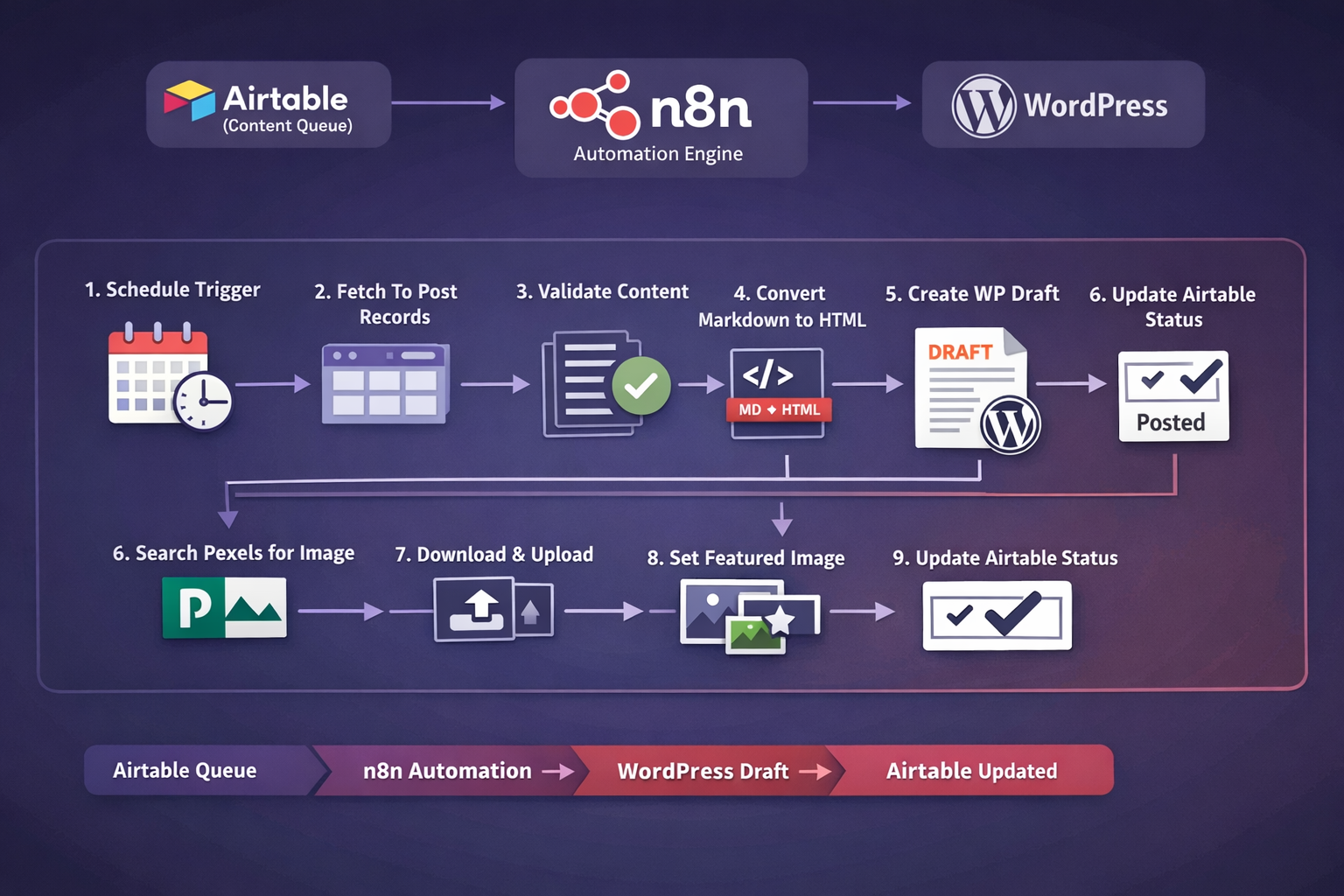
Workflow: Auto-Post Airtable Blog Content to WordPress (with Featured Image) via n8n
Playbook Card (1-minute summary)
Creates: WordPress Drafts + Featured Image
Best for: SMEs publishing 1–10 posts/week
Time to implement: ~60–90 mins
Risk level: Medium (touches publishing)
This workflow turns content publishing into a repeatable system: pull content from Airtable, format it correctly, create a WordPress draft, attach a featured image automatically, then mark it as posted.
Works with: Airtable (content queue) → n8n (automation) → WordPress (distribution) → Pexels (image source)
1) What pain point it solves (Business Model Canvas lens)
The real problem isn’t “posting.” It’s content operations. Most SME teams lose momentum because publishing is a manual, fragmented process: copy-paste, formatting fixes, image hunting, uploading media, setting featured images, then updating tracking sheets.
Where leaders feel the pain
- Inconsistent publishing cadence: drafts pile up, marketing loses rhythm, authority compounds slower.
- Manual posting waste: every post repeats the same admin steps (high time cost, high error rate).
- No single source of truth: “Is this posted?” becomes a weekly team conversation.
- Quality inconsistencies: formatting and featured images vary by who posted.
Strategic outcome: Airtable becomes your control tower, WordPress becomes the distribution engine, and n8n becomes the invisible operations layer that keeps everything consistent.
2) What this workflow does
- Pulls queued posts from Airtable where
Statusis “To Post” (limited batch per run). - Validates content exists (prevents empty WordPress posts).
- Prepares fields (Title, Keyword, Body extraction/cleanup).
- Converts Markdown → HTML so WordPress renders cleanly.
- Creates a WordPress post as Draft (safe by default).
- Searches Pexels using the post’s Keyword to find an image.
- Downloads and uploads the image to WordPress Media.
- Sets the uploaded image as Featured Image for the draft post.
- Updates Airtable status to “Posted” for tracking.
Draft-first control: You keep quality checks (internal links, categories, SEO fields) before publishing.
3) How the workflow flows
Flow map (simple)
Schedule Trigger → Pull “To Post” → Validate → Set fields → Markdown→HTML → Create WP Draft → Search image → Download → Upload → Set featured → Mark Airtable as Posted
Node-by-node logic (what happens behind the scenes)
| Stage | What it does | Why it matters |
|---|---|---|
| Trigger | Runs on schedule | Consistency without relying on memory |
| Airtable Search | Finds records where Status contains “To Post” | Predictable publishing rhythm |
| Validation | Filters out records with missing Blog Post content | Avoids blank drafts |
| Markdown → HTML | Converts content into HTML | Preserves formatting |
| WordPress Draft | Creates a Draft post with title + HTML content | Quality control before publish |
| Pexels Image | Searches an image using Keyword | Speeds production |
| Media + Featured | Uploads image + sets featured_media | Ready-to-review draft package |
| Status Update | Marks Airtable record as Posted | Single source of truth |
4) Step-by-step DIY setup guide
Pre-flight checklist
- n8n instance can reach Airtable + WordPress
- Airtable fields:
Title,Keyword,Blog Post,Status - WordPress Application Password created
- Pexels API key ready
- One test record marked
Status = To Post
A) Import the workflow
- In n8n: Workflows → Import
- Import the workflow JSON from your pack
- Open the workflow canvas and check nodes in sequence
B) Configure credentials
- Airtable: connect token/credentials, verify “To Post” filter returns records.
- WordPress: set site URL + application password; test Draft creation first.
- Pexels: add API key to Authorization header in the image search node.
C) Test run
- Create 1 Airtable record with Title, Keyword, Blog Post
- Set Status to “To Post”
- Run workflow once manually
- Confirm: WP Draft created + Featured Image set + Airtable status updated
5) Quality rules & KPIs
Definition of “To Post” (minimum standard)
- Title present
- Keyword present
- Blog Post above your minimum length
- At least 2 headings
KPIs worth tracking
- Time saved per post
- Publishing cadence (posts/week)
- Error rate (missing image, formatting issues)
- Business outcome (traffic, enquiries, sign-ups)
6) Troubleshooting
| Symptom | Likely cause | Fast fix |
|---|---|---|
| No Airtable records pulled | Status filter mismatch / wrong table | Confirm field name “Status” + value “To Post”; test Airtable node alone |
| WordPress draft created but empty | Wrong content mapping | Check Blog Post mapping; verify Markdown→HTML input |
| Image not set as featured | Pexels returns no image / upload fails | Add fallback (default image or Needs Image status) + verify WP auth |
| Media upload fails (401/403) | WordPress auth/permissions | Use Application Password for editor/admin; confirm REST endpoint access |
7) Developer credit
Automation stack: n8n workflow integrating Airtable → WordPress REST API → Pexels.
Key capability: scheduled publishing pipeline that converts Markdown→HTML, creates WordPress drafts, uploads media, assigns featured images, and updates Airtable status for tracking.
Tags
Replace placeholder OG image URL with your uploaded workflow image once ready.