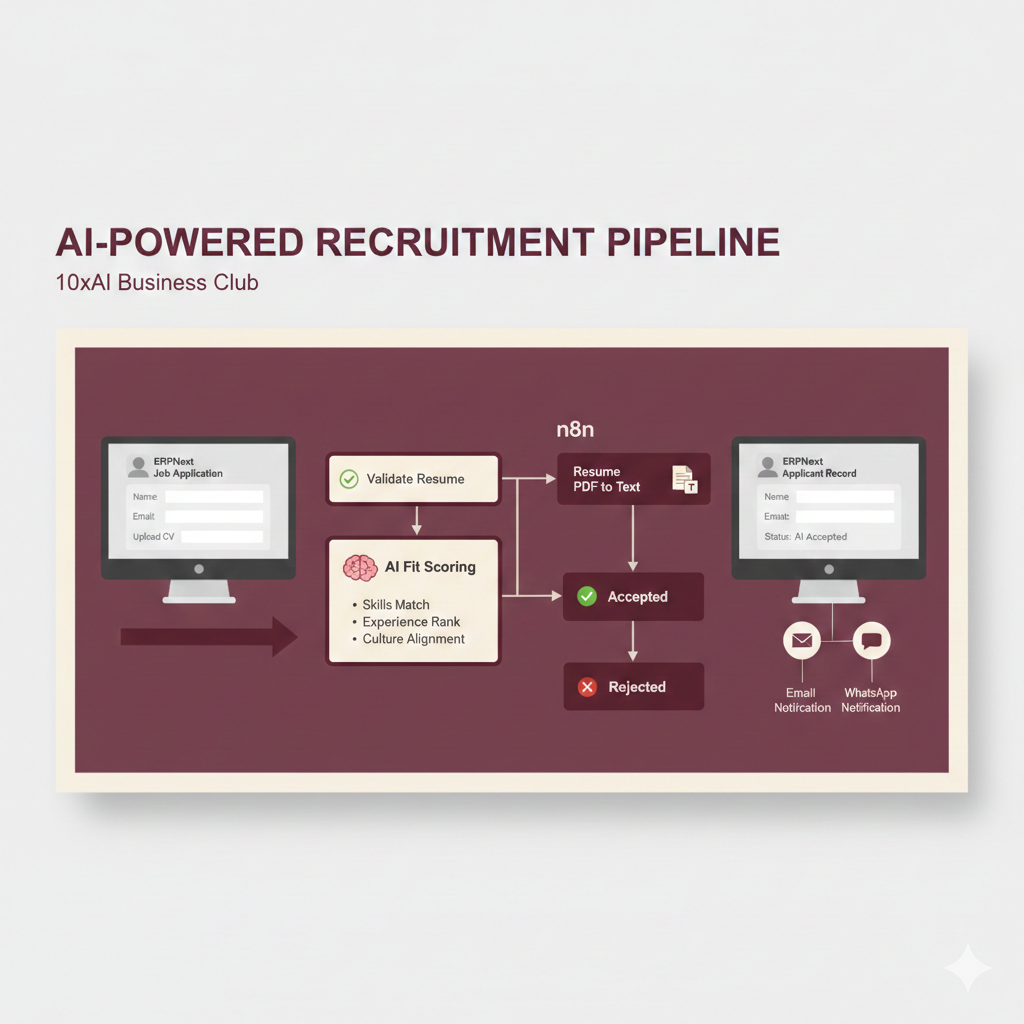
AI-Powered Candidate Shortlisting for ERPNext (n8n Workflow)

10xAI Business Club ยท Workflow Library

DIY Setup Guide: AI-Powered Candidate Shortlisting for ERPNext (n8n + Gemini)

Turn every new Job Applicant in ERPNext into a structured AI review: extract resume text, compare it with the job description, assign a score, and auto-update the applicant status โ€” without manual screening.

ERPNext HR n8n Workflow Google Gemini AI Recruitment

Why Automate Candidate Shortlisting in ERPNext?

If you receive more than a handful of job applications each week, manual screening quickly becomes a bottleneck. HR teams spend hours opening resumes, checking basic fit, and updating the applicant status โ€” before they even start serious interviews.

This workflow turns your ERPNext + n8n stack into an AI-powered recruitment assistant. Every time a candidate applies for a role, the system checks the resume, compares it with the job description, scores the fit, updates the Applicant record in ERPNext, and can even notify the candidate โ€” all with minimal human intervention.

The result: HR spends less time on low-fit resumes and more time interviewing the right candidates.

What This Workflow Does

This n8n workflow is designed to work tightly with ERPNextโ€™s Job Applicant and Job Opening doctypes. At a high level, it:

  • Listens to a Webhook from ERPNext when a new Job Applicant is created.
  • Checks that a resume link is provided and that the applicant is tied to a specific Job Opening.
  • Downloads the resume PDF and converts it into text for analysis.
  • Fetches the full Job Opening details (title and description) from ERPNext.
  • Sends the resume and job description to a Recruitment AI Agent powered by Google Gemini.
  • Receives a structured output: FitLevel, Score, Rating, and Justification.
  • Maps these fields into your ERPNext Job Applicant record (e.g. fit_level, score, applicant_rating, justification_by_ai).
  • Applies a rule: if Score โ‰ฅ 80, mark the candidate as Accepted; otherwise, Rejected.
  • Optionally triggers email (Outlook) or WhatsApp Business notifications to the candidate.

In other words, every new application is automatically scored and tagged inside ERPNext so your HR team can focus on the best-fit profiles first.

How the Workflow Flows (Node-Level Overview)

Hereโ€™s the simplified flow, mapped to the core n8n nodes used in this template:

  • Webhook โ€“ receives candidate data from ERPNext when a Job Applicant is submitted.
  • ApplicantData + validation โ€“ extract and clean the payload, make sure a resume link and Job Opening are present.
  • Download PDF Resume โ†’ PDF to Text โ€“ download the candidateโ€™s resume and extract the text.
  • Get Job Opening โ€“ pull the job title and description from ERPNext.
  • Recruitment AI Agent (Google Gemini) โ€“ compares resume vs job description and returns fit level, score, rating, and justification.
  • Convert to Fields โ€“ parses the AI output into clean fields: fit_level, score, applicant_rating, justification_by_ai.
  • Update Applicant Data โ€“ updates the Job Applicant in ERPNext with the AI results.
  • If score less than 80 โ€“ routes candidates to Accept Applicant (score โ‰ฅ 80) or Reject Applicant (score < 80).
  • Microsoft Outlook / WhatsApp Business โ€“ optional notifications to inform the candidate of the result.

Step-by-Step DIY Setup Guide

Step 1 โ€“ Install n8n

  1. Go to n8n.io and choose your deployment option: self-hosted, Docker, or n8n Cloud.
  2. Once installed, log in to the n8n editor (e.g. http://localhost:5678 or your cloud URL).

Step 2 โ€“ Prepare ERPNext

  1. Confirm that Job Applicant and Job Opening doctypes are enabled and in use.
  2. Create or verify custom fields on Job Applicant:
    • fit_level (Data / Select)
    • score (Int or Float)
    • justification_by_ai (Text / Text Editor)
    • Use existing applicant_rating (0โ€“5 stars).
  3. Ensure your resume field (resume_link or resume_attachment) stores a valid URL to the PDF.

Step 3 โ€“ Create the ERPNext Webhook

  1. In ERPNext, go to Webhooks and create a new webhook on the Job Applicant doctype.
  2. Set the trigger to on insert so it fires whenever a new application is submitted.
  3. Point the Webhook URL to the Webhook node URL from this n8n workflow.
  4. Save and perform a test submission to capture the data structure in n8n.

Step 4 โ€“ Import the Workflow

  1. Download the JSON file from the Google Drive link at the top of this post.
  2. In n8n, go to Workflows โ†’ Import โ†’ From File and upload the JSON.
  3. After import, youโ€™ll see the full workflow with all nodes connected.

Step 5 โ€“ Connect Credentials & Test

  1. Set up your credentials for:
    • ERPNext API
    • Google Gemini / LLM
    • Microsoft Outlook (optional)
    • WhatsApp Business Cloud (optional)
  2. Open the Recruitment AI Agent node to review and adjust the system prompt, scoring rules, and output format.
  3. Test with a sample Job Opening and a few Job Applicants before turning the workflow to Active.
Developer Credit

Workflow Developed by Amjid Ali

Contact & Profiles:
Email: amjid@amjidali.com
LinkedIn: linkedin.com/in/amjidali
Website: syncbricks.com
YouTube: youtube.com/@syncbricks

๐Ÿ“ฉ Contact an AI Consultant

Want help customising or integrating AI into your existing workflow?

Email: 10xadmin@digitalaibusinessclub.com